SkaleMe relies on your LinkedIn browser session to work. Two setup mistakes cause the majority of errors — failed imports, disconnections, and missing activity. Here's what to watch for.
Issue 1: Using Different Browsers or Browser Profiles
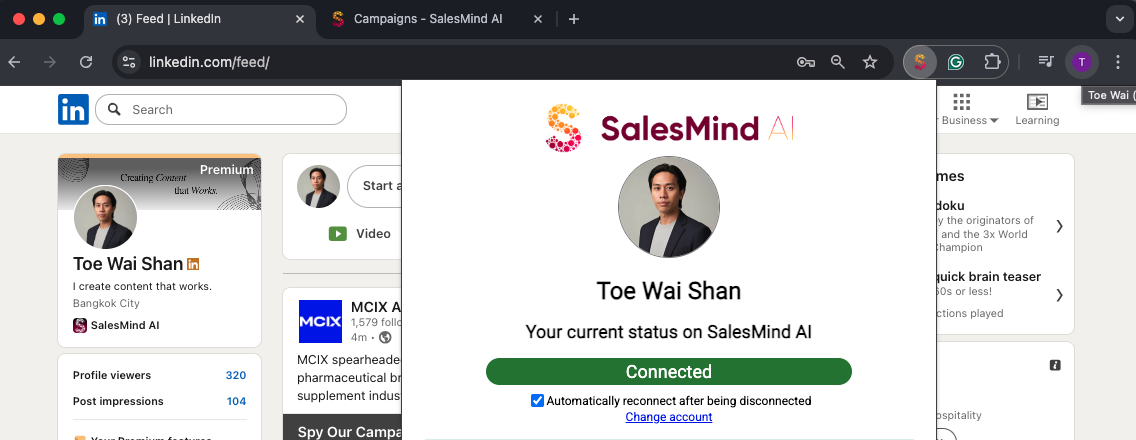
SkaleMe reads your LinkedIn session cookies through the Chrome extension. If LinkedIn and SkaleMe are open in different browsers or different Chrome profiles, the extension can't access those cookies.
Common mistakes:
- LinkedIn open in Safari, SkaleMe open in Chrome
- LinkedIn logged in on Chrome Profile A, extension installed on Chrome Profile B
- Using a private/incognito window for one and a regular window for the other
The result: Your account shows as disconnected and no outreach activity runs.
⚠️ Warning: Always log into both LinkedIn and SkaleMe in the same browser profile where the Chrome extension is installed. This is the single most common setup error.
How to fix it:
- Open Chrome with the profile that has the SkaleMe extension installed
- Log into LinkedIn in that same profile
- Log into SkaleMe in that same profile
- Refresh the page — your account should reconnect within a minute
Issue 2: Safari URL Length Limit
When importing leads from LinkedIn Sales Navigator, the search URL can get very long if you apply many filters. Safari caps URLs at 4,096 characters and silently truncates anything longer. SkaleMe then receives an incomplete URL and can't process the search correctly.
💡 Tip: Always use Chrome when copying Sales Navigator search URLs into SkaleMe. Chrome handles long URLs without truncation.
What's Next
- Account still disconnected after fixing your browser setup? See the My Account Has Been Disconnected article
- Campaign not running despite being connected? See the Why Is My Campaign Not Running? article