SkaleMe integrates with GoHighLevel (also known as LeadConnector) so that every lead you export lands in your GoHighLevel account with their LinkedIn profile URL and your SkaleMe inbox link attached to a contact field you choose.
When to use this
Connect SkaleMe to GoHighLevel when you want to:
- Automatically push leads from SkaleMe campaigns into your GoHighLevel CRM.
- Trigger GoHighLevel Workflows based on a lead's LinkedIn URL. SkaleMe writes the LinkedIn profile URL into a GoHighLevel contact field you choose; you then build a Workflow inside GoHighLevel that fires when that field is updated — so you can launch sequences, tasks, or surveys automatically.
- Keep track of where each conversation happened by storing the SkaleMe inbox URL on the contact record.
Before you start
Create a custom contact field in GoHighLevel first. SkaleMe never creates these fields for you. You need at least one custom contact field of type Text, Large Text, or Link in your GoHighLevel account before you can complete the mapping step below.
You can create two separate fields — one for the LinkedIn URL and one for the SkaleMe inbox URL — or use a single field for one of them.
One CRM at a time. SkaleMe supports one active CRM integration at a time. If HubSpot or Pipedrive is already connected, you must disconnect it before you can connect GoHighLevel.
How to connect SkaleMe to GoHighLevel
- Go to Agent → Integrations at
https://app.skaleme.io/agents?view=integrations. - Find the GoHighLevel card in the CRM section. It appears first and carries a Recommended label.
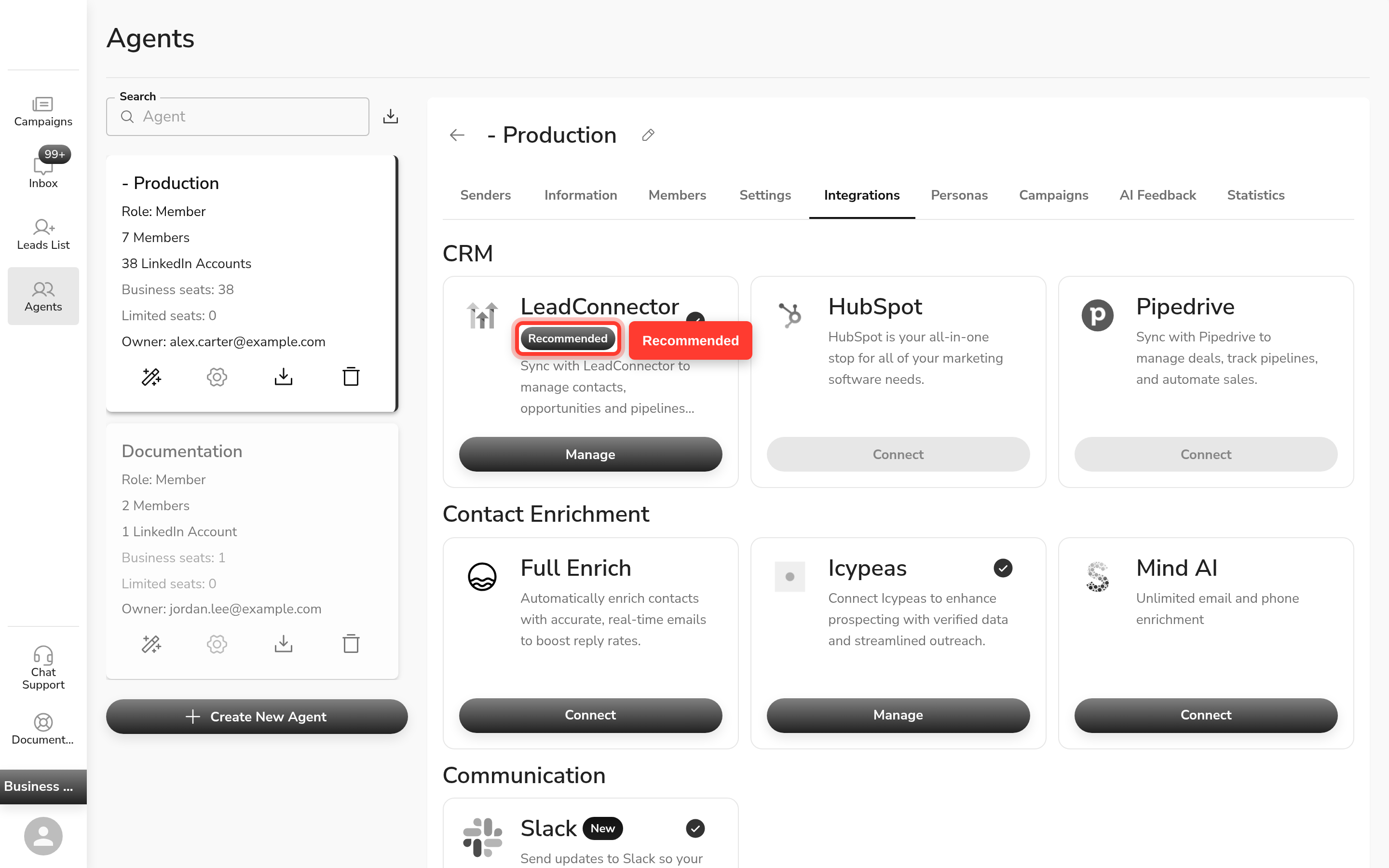
- Click Connect. A Nango OAuth window opens.
- Sign in to your GoHighLevel account and authorize the connection.
- The window closes and the GoHighLevel card updates to show it is connected.
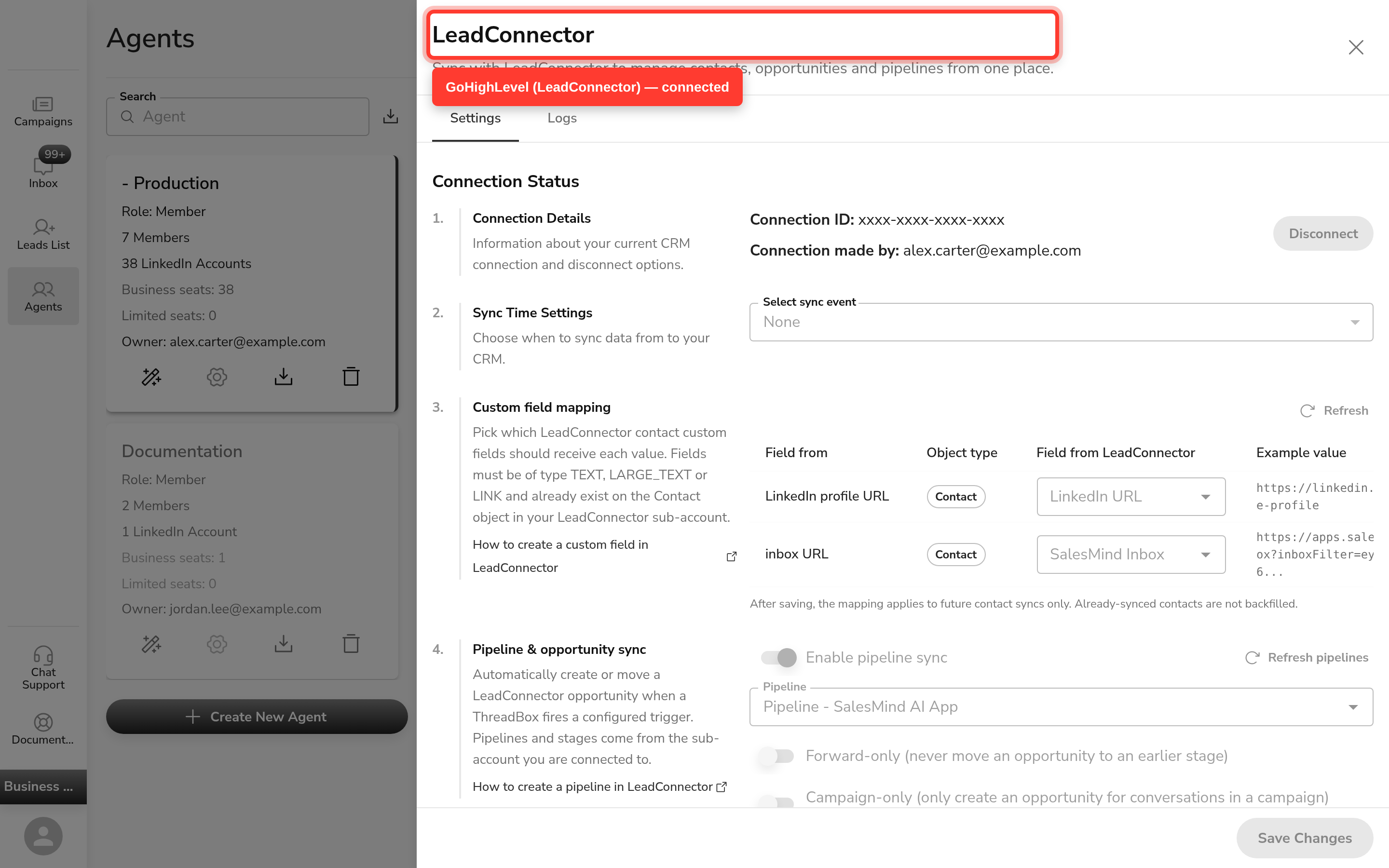
Alternative entry point. If you installed the GoHighLevel/LeadConnector marketplace app, it links directly to the same connection page.
Map your custom fields
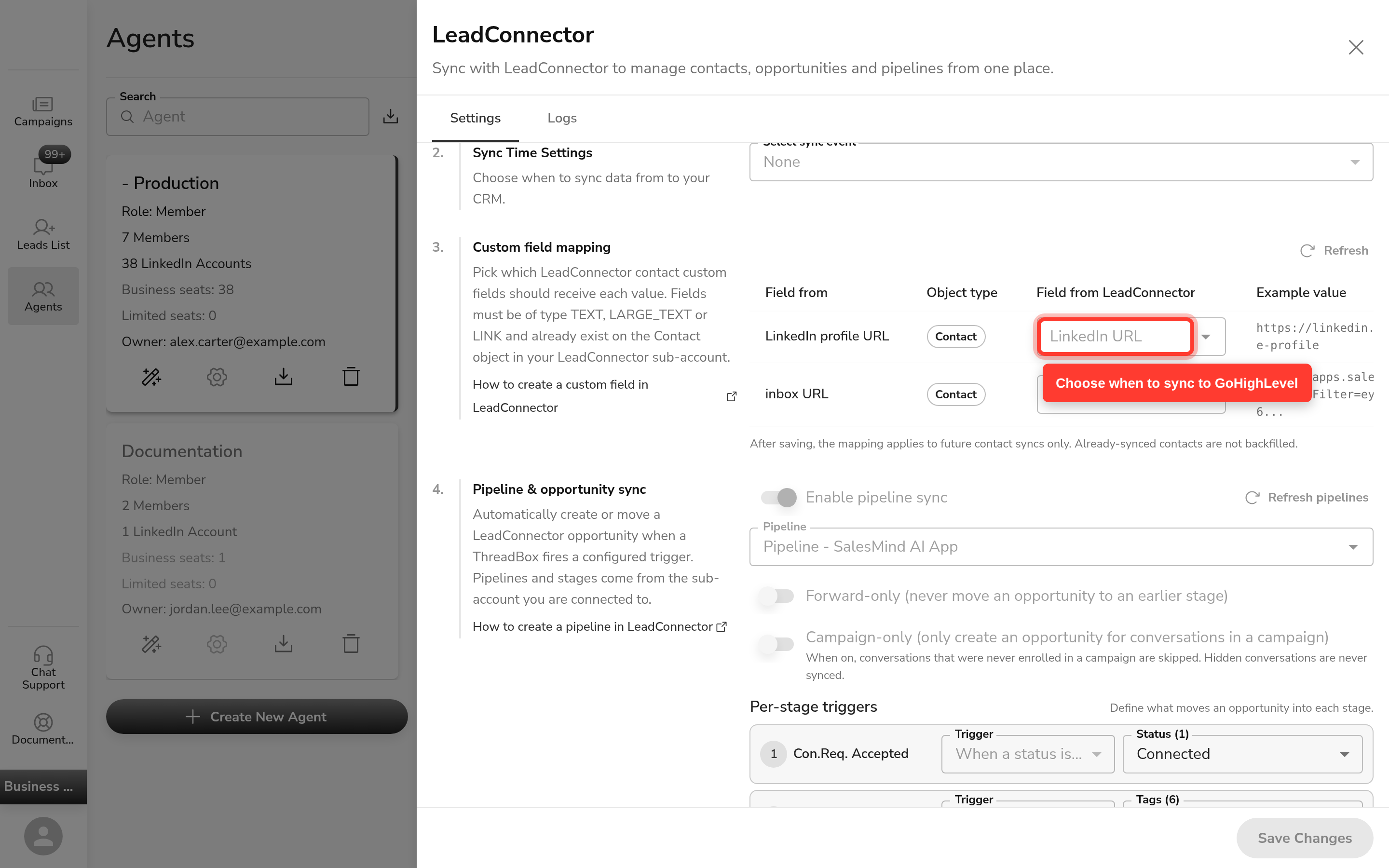
Once connected, expand the GoHighLevel card to see the Custom Field Mapping table.
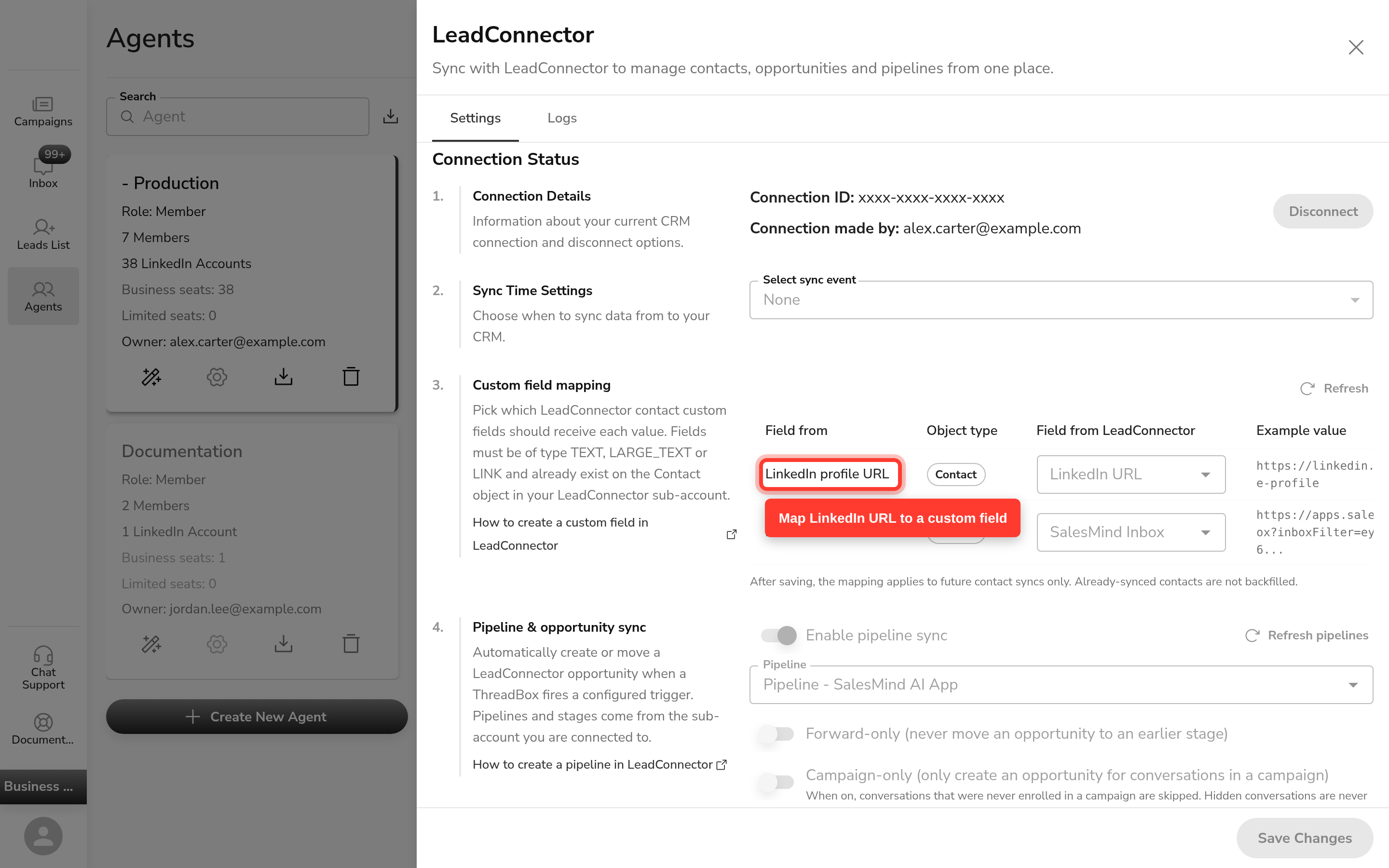
- In the LinkedIn URL row, pick the GoHighLevel contact field you want to receive the lead's LinkedIn profile URL.
- In the SkaleMe Inbox URL row, pick a different GoHighLevel contact field to receive the SkaleMe inbox deep-link for that lead.
- Each row must map to a different field.
Only fields of type Text, Large Text, or Link appear in the dropdown. If you do not see a field, go to your GoHighLevel account, create the custom field there, then come back and refresh.
Choose a sync event
Under Sync event, choose when SkaleMe should push data to GoHighLevel:
| Option | When it syncs |
|---|---|
| None | Never (disabled) |
| Contact created | When a new contact is added |
| Campaign launched | When a campaign starts |
| Message sent | When a message is sent |
| Message reply | When a lead replies |
| Tag interest | When a lead is tagged as interested |
Optional: auto-create tasks on hot leads
Toggle Auto-Create Tasks on Hot Lead to have SkaleMe create a follow-up task in GoHighLevel when a lead is marked as a hot lead. You can also configure follow-up tags in this section.
Save
Click Save changes to apply your mapping and sync settings.
What SkaleMe sends to GoHighLevel
On each sync event, SkaleMe writes two values onto the GoHighLevel contact record:
- LinkedIn URL → the mapped LinkedIn profile URL field.
- SkaleMe Inbox URL → the mapped inbox deep-link field.
SkaleMe does not build pipelines, opportunities, workflows, or surveys in GoHighLevel. Those are created and managed inside GoHighLevel.
Trigger a GoHighLevel workflow from a LinkedIn URL
Because SkaleMe populates the LinkedIn URL field on a contact, you can use it as a trigger inside GoHighLevel. In your GoHighLevel account, build a Workflow that fires when that contact field is updated. From there you can run any automation GoHighLevel supports — sequences, tasks, surveys, and more — without any additional setup on the SkaleMe side.
Limits and notes
- Only one CRM can be active at a time. To switch from GoHighLevel to HubSpot or Pipedrive, disconnect GoHighLevel first.
- SkaleMe never creates GoHighLevel contact fields automatically. Always create the field in GoHighLevel first.
- The LinkedIn URL field in GoHighLevel must be type Text, Large Text, or Link. Other field types do not appear in the mapping dropdown.
- SkaleMe does not include a webhook builder, workflow builder, or survey tool. Automation beyond the field mapping is built inside GoHighLevel.
- White-label users: GoHighLevel availability depends on your account configuration. If you do not see the GoHighLevel card under Integrations, contact your account administrator to confirm the integration is enabled.
FAQ
How do I connect SkaleMe to GoHighLevel?
Go to Agent → Integrations, find the GoHighLevel card in the CRM section, and click Connect. A login window opens where you authorize your GoHighLevel account. Once you close the window, the connection is active.
What does SkaleMe actually hand off to GoHighLevel, and what do I build in GHL?
SkaleMe writes the lead's LinkedIn profile URL and the SkaleMe inbox link onto the GoHighLevel contact fields you map. Everything else — pipelines, opportunities, workflows, and surveys — is built inside GoHighLevel. SkaleMe does not have its own workflow or survey tools.
How do I map the LinkedIn URL field to a custom field in GoHighLevel?
Expand the GoHighLevel card after connecting. In the Custom Field Mapping table, pick a GoHighLevel contact field for the LinkedIn URL row and a different field for the SkaleMe Inbox URL row, then click Save changes.
Do I need to create the custom field in GoHighLevel first, or does SkaleMe create it for me?
You create the field in GoHighLevel first. Go to your GoHighLevel account, add a custom contact field of type Text, Large Text, or Link, then come back to SkaleMe to map it. SkaleMe never creates these fields automatically.
Can GoHighLevel automatically run a workflow or survey when SkaleMe adds a lead's LinkedIn URL?
Yes — but the workflow is built inside GoHighLevel, not in SkaleMe. In your GoHighLevel account, create a Workflow that triggers when the LinkedIn URL contact field is updated. From there you can run any automation GoHighLevel supports.
What data does SkaleMe send to GoHighLevel, and when?
SkaleMe sends the lead's LinkedIn profile URL and the SkaleMe inbox deep-link. It sends them on the sync event you choose: contact created, campaign launched, message sent, message reply, or tag interest.
Can I connect GoHighLevel if I already have HubSpot or Pipedrive connected?
No — only one CRM can be active at a time. Disconnect your current CRM integration first, then connect GoHighLevel.